
What the app is
Cifras Live shows your band's chord charts on a phone, tablet or computer and keeps everyone on the same song, in the same key and at the same section. The Leader leads and the musicians' devices follow in real time.
This guide is also available in português and español. The screenshots show the app in Portuguese.
Charts are saved on the device. Without internet, only the live room and videos don't work.
Transpose with one tap; the app remembers each singer's key.
Song, key, scrolling and sections follow the Leader.
The Projector shows only the lyrics of the section being played.
Install on your phone
The app opens in the browser and can be installed like an app, with an icon on your home screen.
Android (Chrome)
- Open the app's address in Chrome.
- Tap the three dots ⋮ and then Install app (or “Add to Home screen”).
iPhone (Safari)
- Open the address in Safari.
- Tap Share ⬆ and then Add to Home Screen.
Computer
In Chrome or Edge, click the install icon in the address bar, or just use the app in the browser.
Home screen
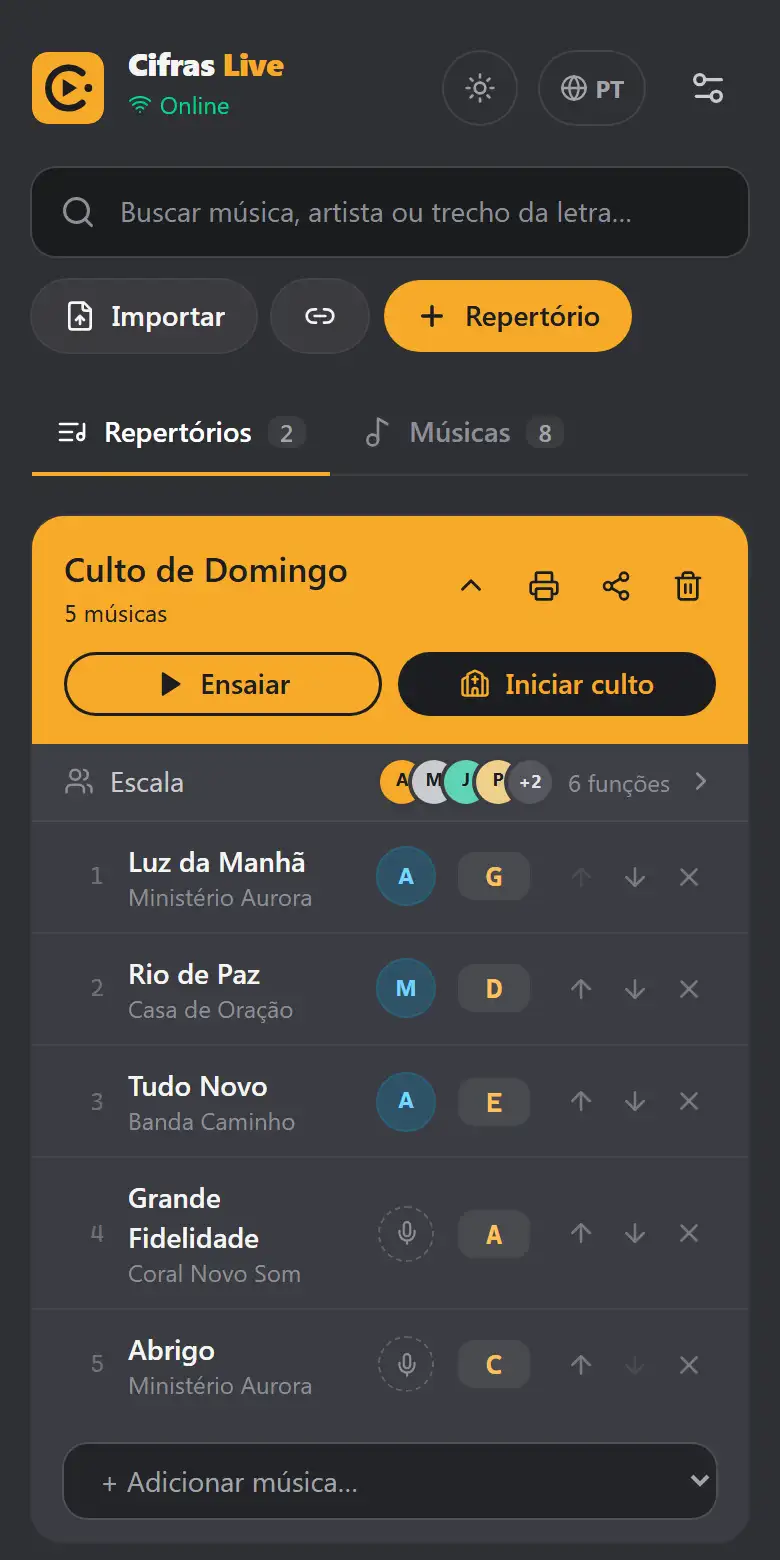
- Search at the top: finds songs by title, artist or lyrics.
- Import, Paste link and + Setlist (or + Song, on the Songs tab).
- Setlists and Songs tabs.
- Each setlist is a card: at the top, its name with Rehearse and Start service; below it, the Lineup row; then the songs with their keys.
- On the left (or right after the setlists, on a phone): Live sync and Team. On a phone, the antenna icon at the top goes straight to the room code.
- Welcome: the first time, a card asks whether you'll play on your own (opens an example song) or with your team (creates the room and shows the QR code). It goes away once used or with ✕.
- At the top right, the ⚙ opens Settings (language, theme, you on this device, backup).
- At the bottom, the app version (for example “Version 0.2 · 27/10, 08:00”; the date and time show whether the device is up to date). Tapping it opens the What's new page.
- Next service: if you're on the schedule (and picked your name in You on this device), a card at the top shows the date, time and your role, with an Open button. It disappears when no service is coming up.
- Backup reminder: after 14 days without exporting, a small card reminds you to save a backup (Export, or ✕ to be reminded in 7 days).
- In the Songs tab: the star ☆ marks favorites, and the Favorites filter shows only those. With 10 songs or more, key and artist filters also appear. The themes you use (Worship, Communion…) become filters too: one tap shows only that theme's songs.
Settings, theme and backup
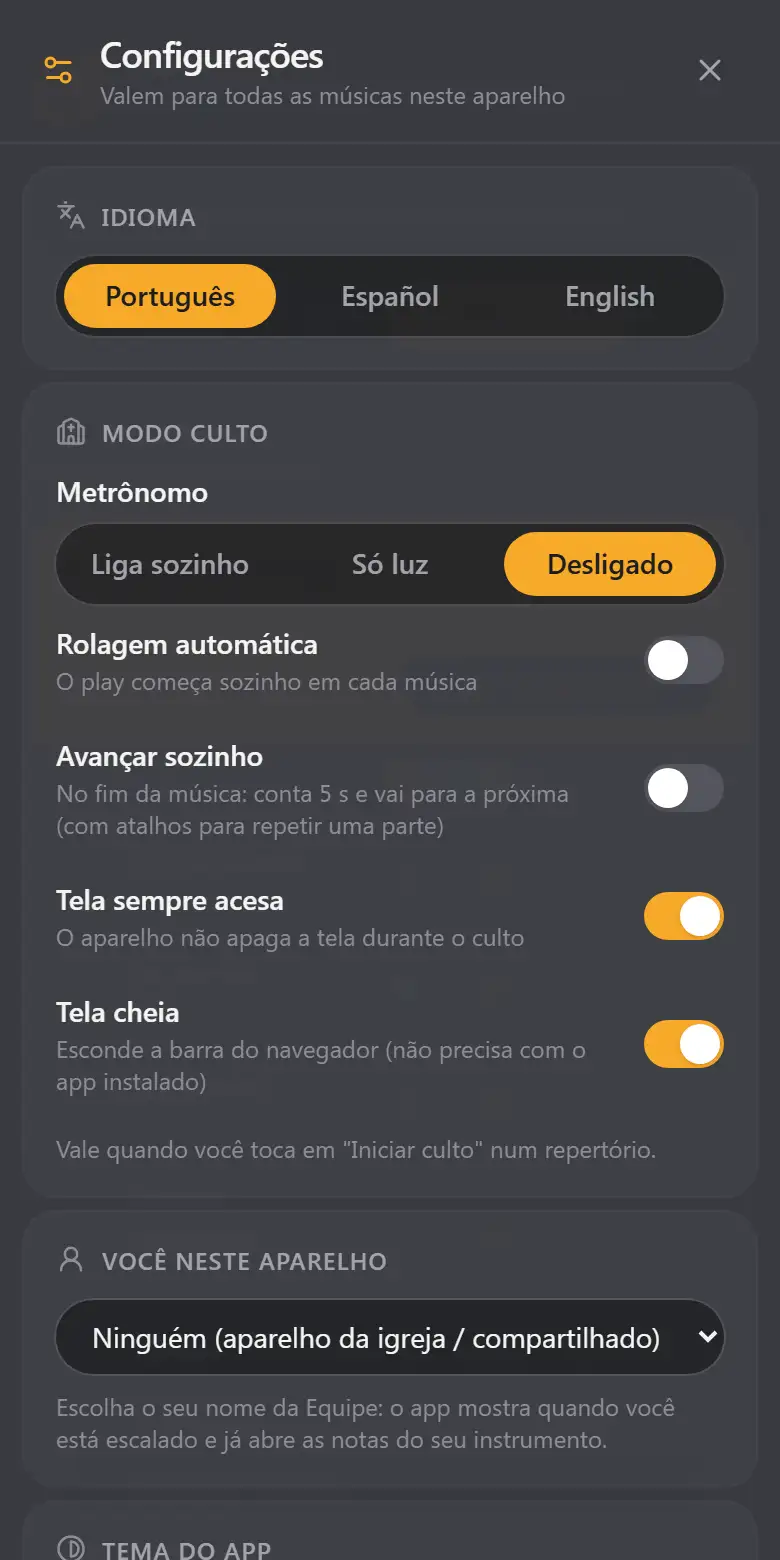
On the home screen, tap the ⚙ (top right). What you choose here applies to all songs, on this device only.
Language
Português, Español or English. The first time, the app opens in your phone's language; if you change it here, it reloads in the new language. Songs don't change: each chart stays as it was written.
You on this device
Pick your name from the Team. The app then shows “You: Bass” on the services where you're in the lineup and opens your instrument's notes. On the church (or shared) device, leave it as No one.
App theme
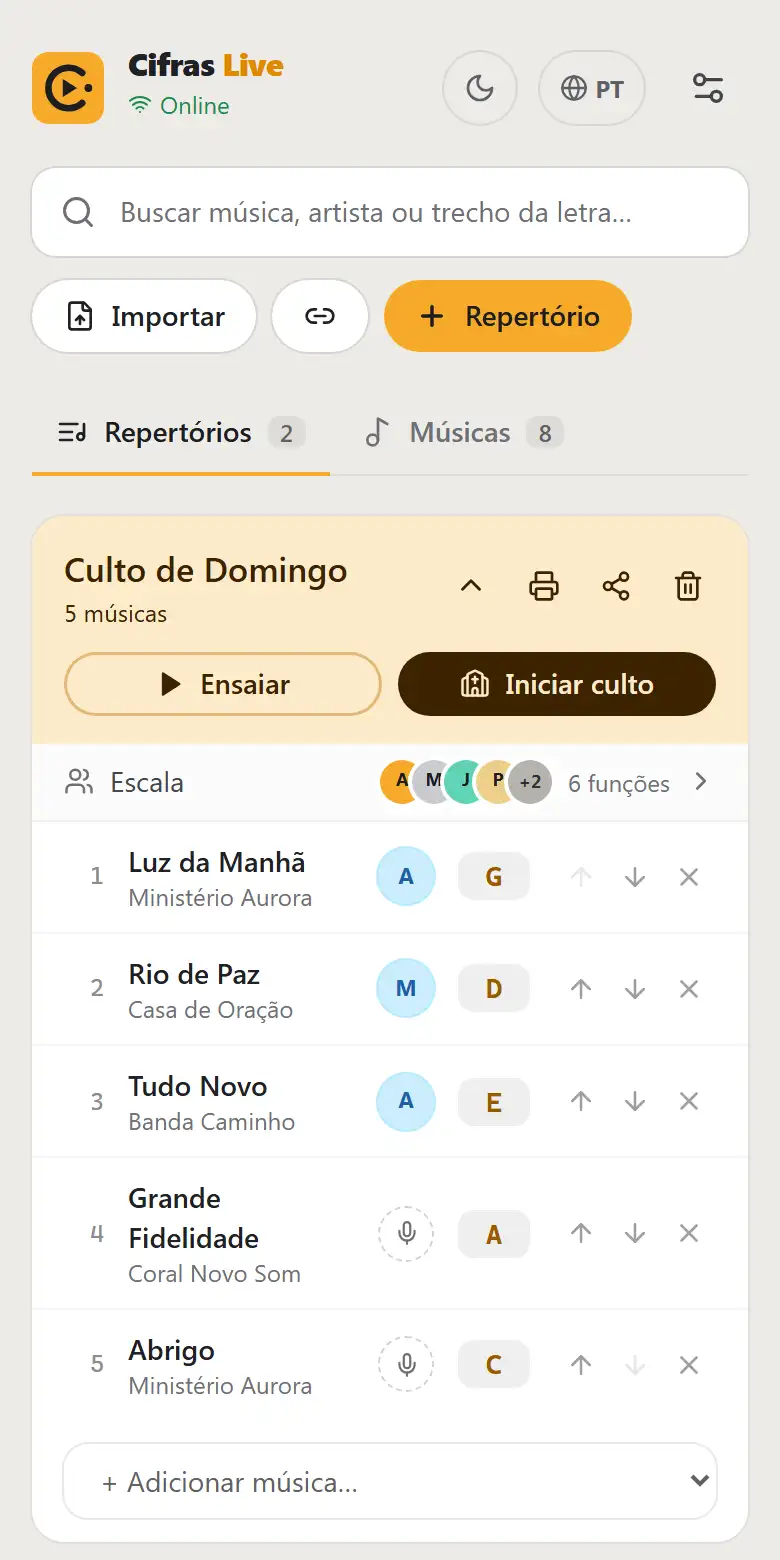
Light, Dark or System (follows your phone). It changes the home screen and panels. The chart page has its own theme, under Chart appearance (Dark, Print or Light).
Song backup
- Export downloads a
.jsonfile with all songs, setlists, team and lineups. - Import merges the backup with what's already here; the same song is replaced by the backup's. The backup file can also come in through the home screen's Import button or by dropping it on the screen.
- The Backup button at the top of Settings goes straight to this section. Each Settings section opens and closes with a tap.
Service mode, metronome and song screen
The same switches as the Settings panel, so everything is ready before the service.
Repertoire statistics
Tap Show statistics: most played songs, who played the most, most used keys by singer, forgotten songs (not in a setlist for 3 months or more) and the average tempo. Only setlists dated up to today count. Hide statistics closes it.
Add a song
- On the Songs tab, tap + Song.
- Fill in Title, Artist, Key and, if you like, BPM (for the metronome).
- Optional: paste a Reference link (YouTube or Spotify). See Reference video.
- Optional: tag Themes (Worship, Celebration, Opening, Communion, Offering, Consecration, Christmas, Easter, Kids) or create your own with + New theme. Themes help you plan the service: they become filters on the Songs tab and search finds them too.
- Paste the Chart and tap Save song.
Supported chart formats
- Chords above the lyrics, like on chord websites. Just paste.
- ChordPro: chords in brackets inside the lyrics, e.g.
[G]How great is [D]our God.
Song sections
Mark the sections to use the map, jumps, the Projector and notes by instrument. Any of these works:
[Chorus]or[Verse 2]on a line by itselfChorus:(name followed by a colon){start_of_chorus}(ChordPro)
Lines like “Written by: …” or “Tuning: …” show up small in the header.
To edit or delete, tap the pencil ✏️ next to the song.
Import charts
- Import: choose
.txt, ChordPro or PDF files. The app tries to figure out the title, artist and key. - Drag: on a computer, drag files anywhere on the screen.
- Paste link: paste a setlist link someone shared with you.
Setlists
A setlist is the list of songs for a service or rehearsal, in order.
- Tap + Setlist and give it a name (e.g. “Sunday Service”).
- Use + Add song… to include songs.
- Reorder with the ↑ ↓ arrows; remove with the ✕.
- Choose each song's singer and key right in the setlist.
Rehearse or Start service
| Button | What it does |
|---|---|
| Rehearse | Opens the setlist normally, with every button (video, notes, etc.). |
| Start service | Turns on service mode: full screen, screen always on and the automation chosen in Settings. |
Rename, collapse and booklet
- Rename: tap the setlist name.
- Collapse: the ⌄/⌃ arrow in the header leaves only the bar with the name and buttons. Past-dated services start collapsed.
- PDF booklet 🖨: a cover with the index and each song on its own page, in that setlist's key and arrangement. It opens the print window: print it or choose Save as PDF (a backup plan for the service).
Share with the band
- On the setlist, tap Share ⤴.
- Send the link (or the file) by WhatsApp or email.
- Whoever receives it opens the link (or uses Paste link) and saves it. The songs go onto their device.
Included: charts, keys, arrangements, reference links, notes by instrument and the lineup (with date and time).
The recipient sees the lineup before saving. If they haven't said who they are yet, they can tap their own name: the app learns who uses that device.
Team and each singer's key
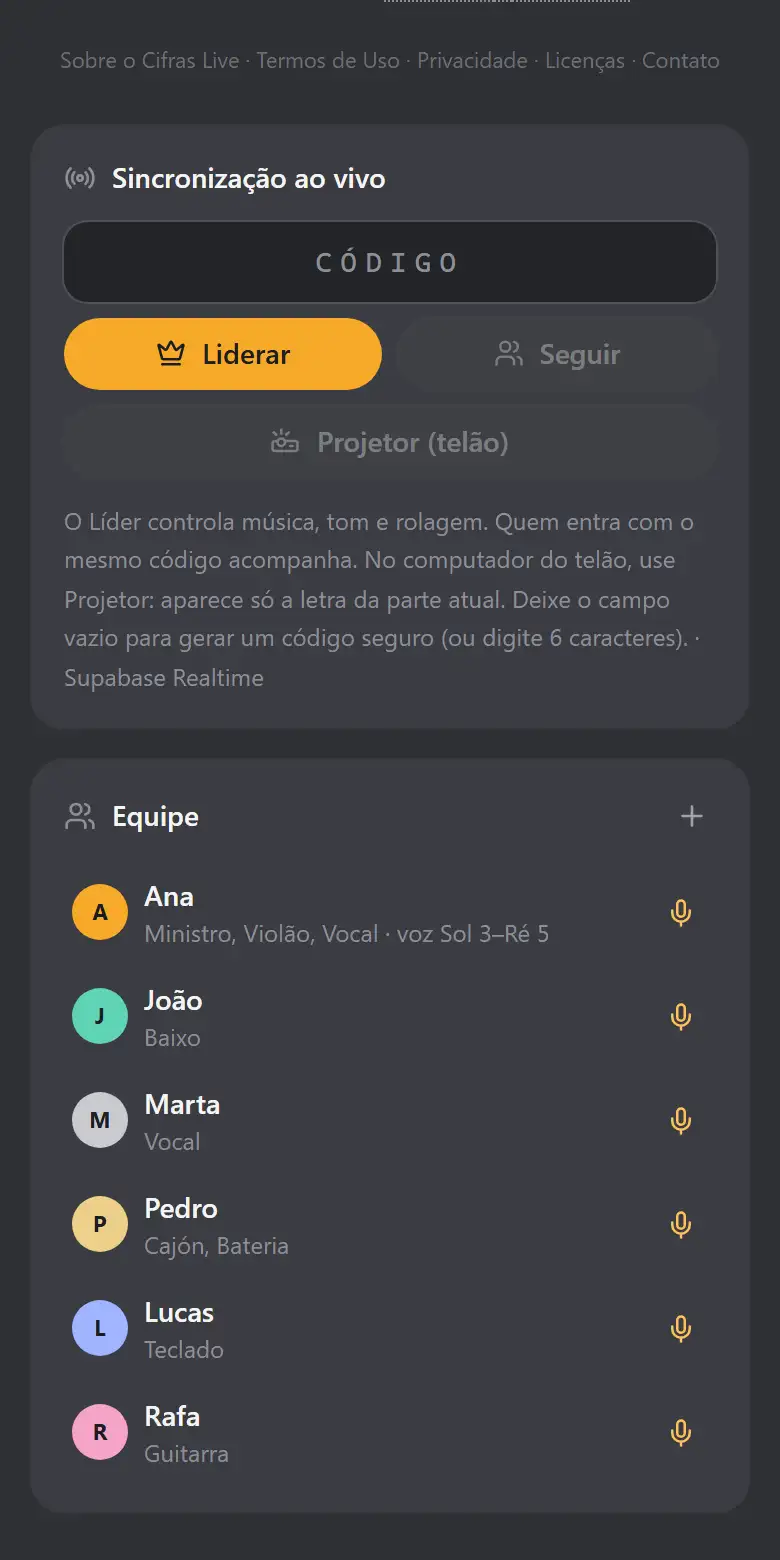
- On the Team card, tap + and type the name. In the window that opens, mark what the person does: Worship leader, Vocals, Backing vocals, Acoustic guitar, Electric guitar, Bass, Keys, Drums, Cajón, Percussion, Violin, Sax, Flute, Trumpet, Sound, Projection.
- Tap a name to change it, change what the person does or delete them (they're removed from lineups too).
- In the setlist, choose each song's singer: the app applies their key. When you change the key, the app learns it for next time.
- Measure voice 🎤: sing the lowest and highest notes; with the song's melody range, the app suggests the best key.
Service lineup
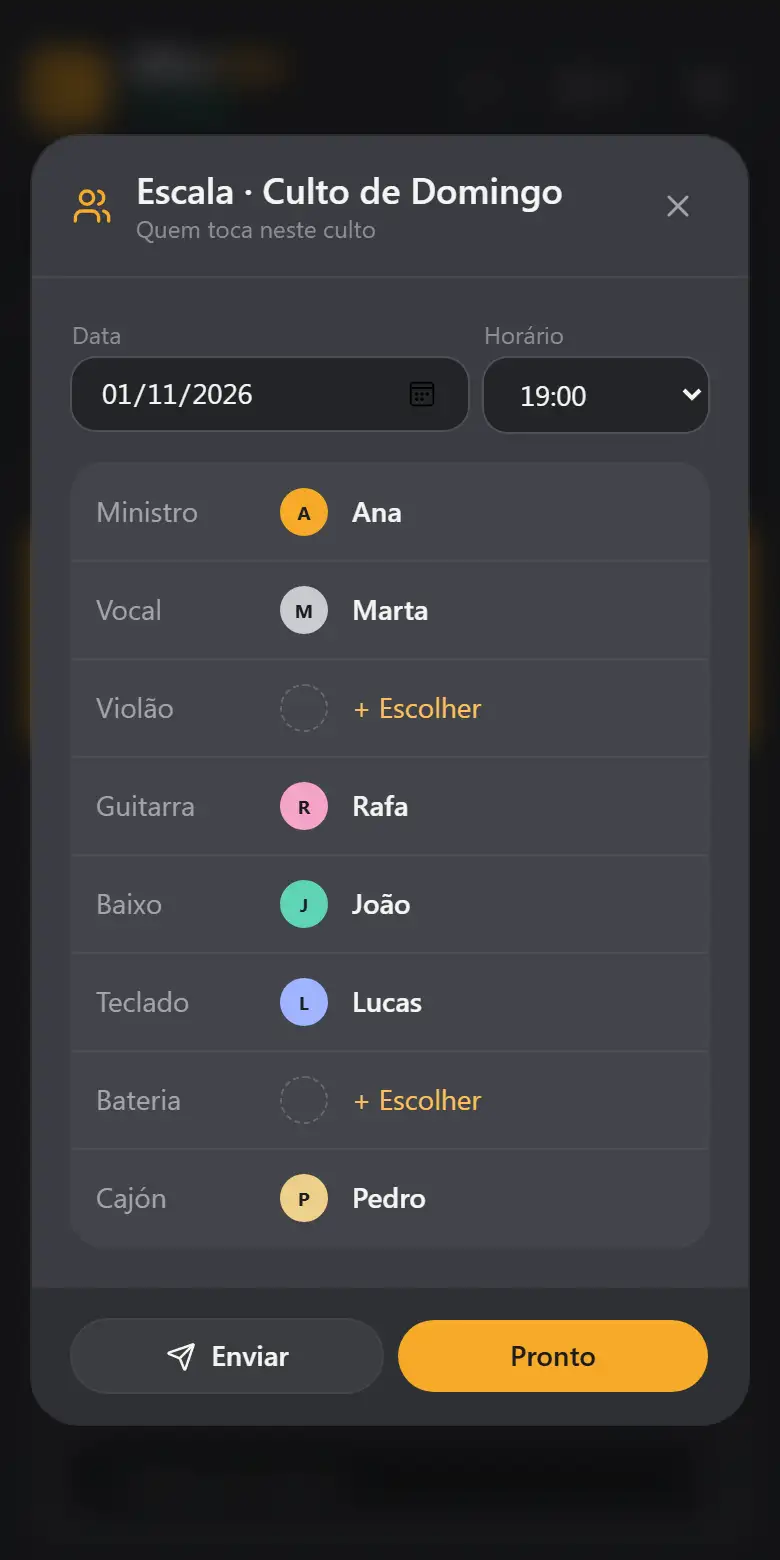
On each setlist, the Lineup row (right under the name) shows the circles of who's already assigned and how many roles are filled. Tap it to open the lineup.
- Choose the service date and time.
- For each role, pick who does it. Only roles someone on the Team does are shown, and for each one only the people who marked that instrument.
- Tap Done to save.
If someone is already in another service on the same day, a warning appears.
Send to the band
Send builds a WhatsApp message with the lineup, the songs in the service's keys and a link. Whoever opens the link sees the lineup and songs and saves everything in the app with one tap.
Song screen
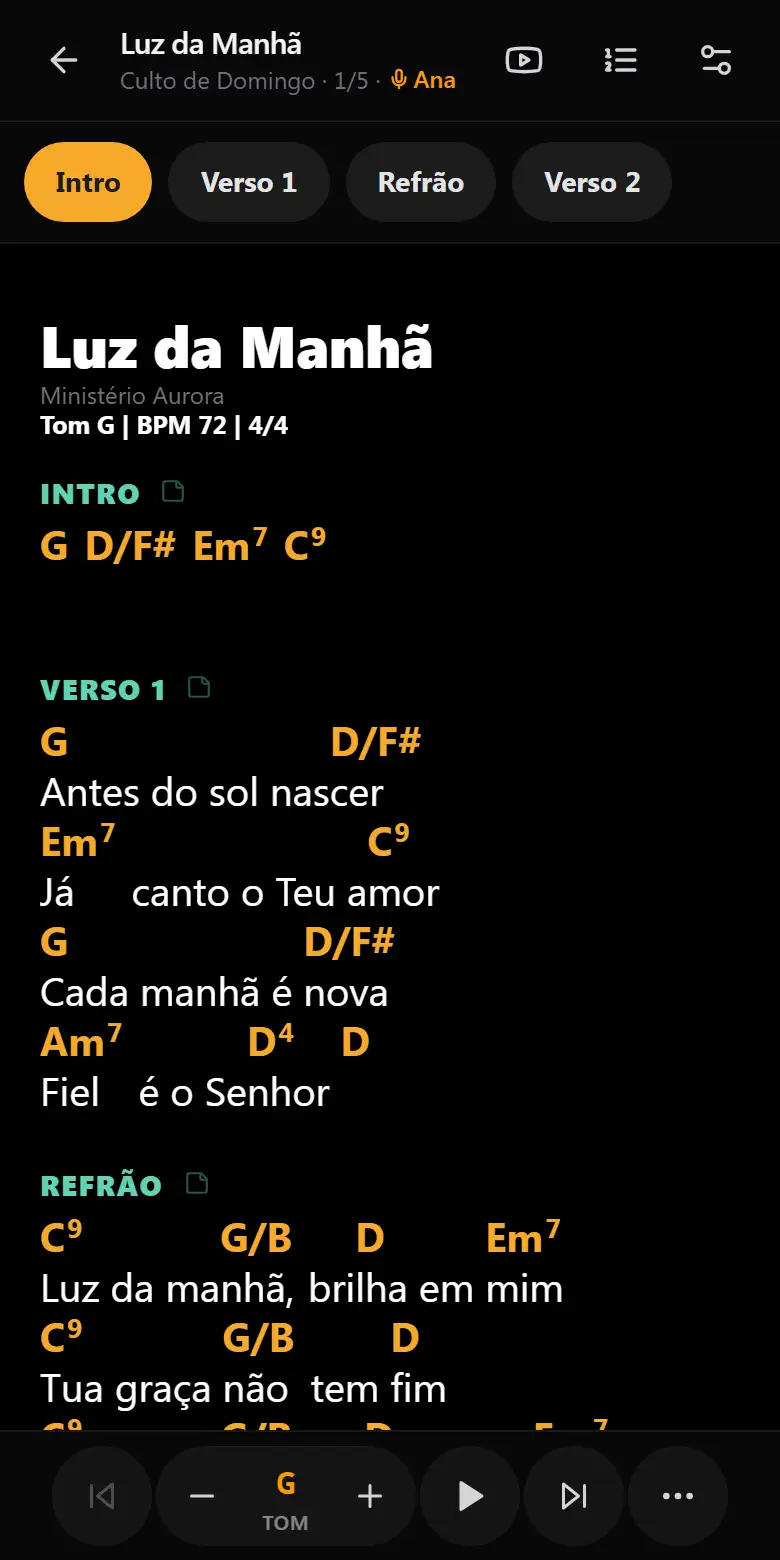
When a song opens, the bars show for a few seconds and then hide to leave the chart clear. Tap the chart once (or the small arrow ^ at the bottom) to bring them back.
Top bar
- ← back · title, setlist and singer.
- YouTube: reference video (hidden in service mode).
- Room badge (LEADER / FOLLOWER, code and how many are connected) and the SERVICE badge.
- Arrangement (section order), Print/PDF and Settings.
Section map
Right below, buttons with the sections (Verse 1, Chorus…): the current one is amber, and the next one shows on the right. In the chart, section names are teal and chords are amber. See Section map.
Pinch to zoom: spread or pinch two fingers on the chart to make the text bigger or smaller. The text reflows to fit the screen and the size is saved (the same as “Text size” in Settings).
Long lines (or very large text) wrap between words, with each chord above its word. The screen never scrolls sideways.
Bottom bar
| Button | Function |
|---|---|
| ⏮ / ⏭ | Previous / next song in the setlist. |
| − Key + | Down or up a half step. The current key shows in the middle. |
| − ▶ + | Starts/pauses scrolling and sets the speed. See Scrolling. |
| 📣 | Cues for the band (Leader only). See Cues. |
| ⋯ | “More” menu. See More menu. |
While the Pad plays, a button with the key appears in the bar (e.g. ♫ G): one tap opens the Pad to turn it off or change the volume.
Scrolling and speed
- ▶ starts auto-scroll; ⏸ pauses it.
- − and + change the speed in steps of 5 (from 5 to 120). The number sits next to the ▶.
- The speed is saved with the song: next time it scrolls at the same pace.
- You can also set it in Settings → Scroll speed.
Page mode
Instead of scrolling, the chart turns pages like a book. Use the bar's arrows, the ← → keys or a Bluetooth pedal. Turn it on in More → Page mode.
Section map and arrangement
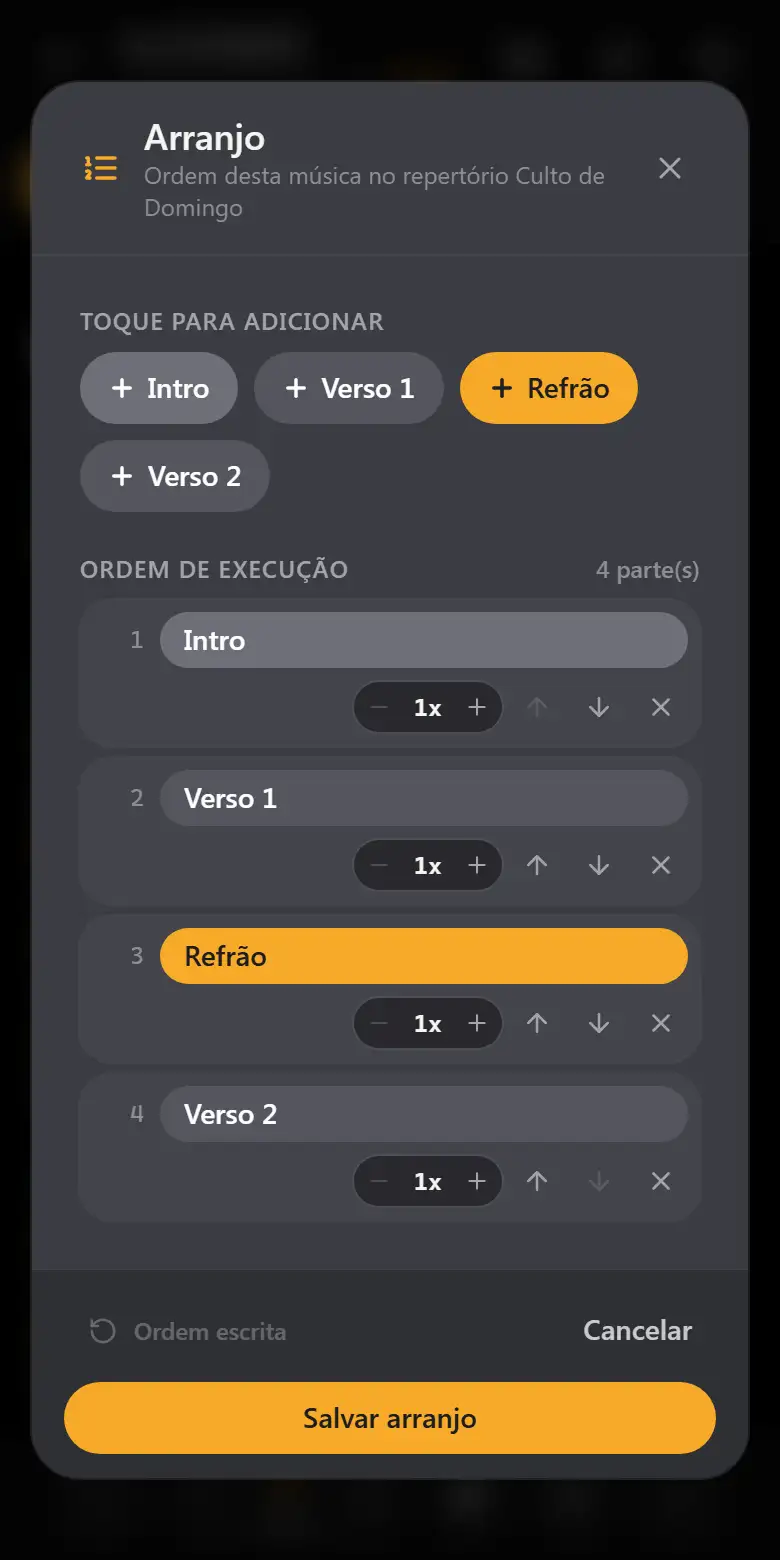
- Tap a section on the map to jump to it. If you're the Leader, the whole band jumps with you (“back to the chorus!”).
- The Arrangement (list icon at the top) sets the section order for that setlist: repeat the chorus 2×, skip a verse, etc. Go back to the written order undoes it.
- On the last section, the Leader sees the end bar: repeat a section, go to the next song or stop.
- Lead-in to the next song: in the last section, above the end bar, the chord that leads to the next song's key appears (e.g. G to A: E7; tap it for the diagram), plus a warning when the tempo changes a lot (e.g. 68 → 128 BPM). Songs in the same key show no lead-in.
“More” menu (⋯)
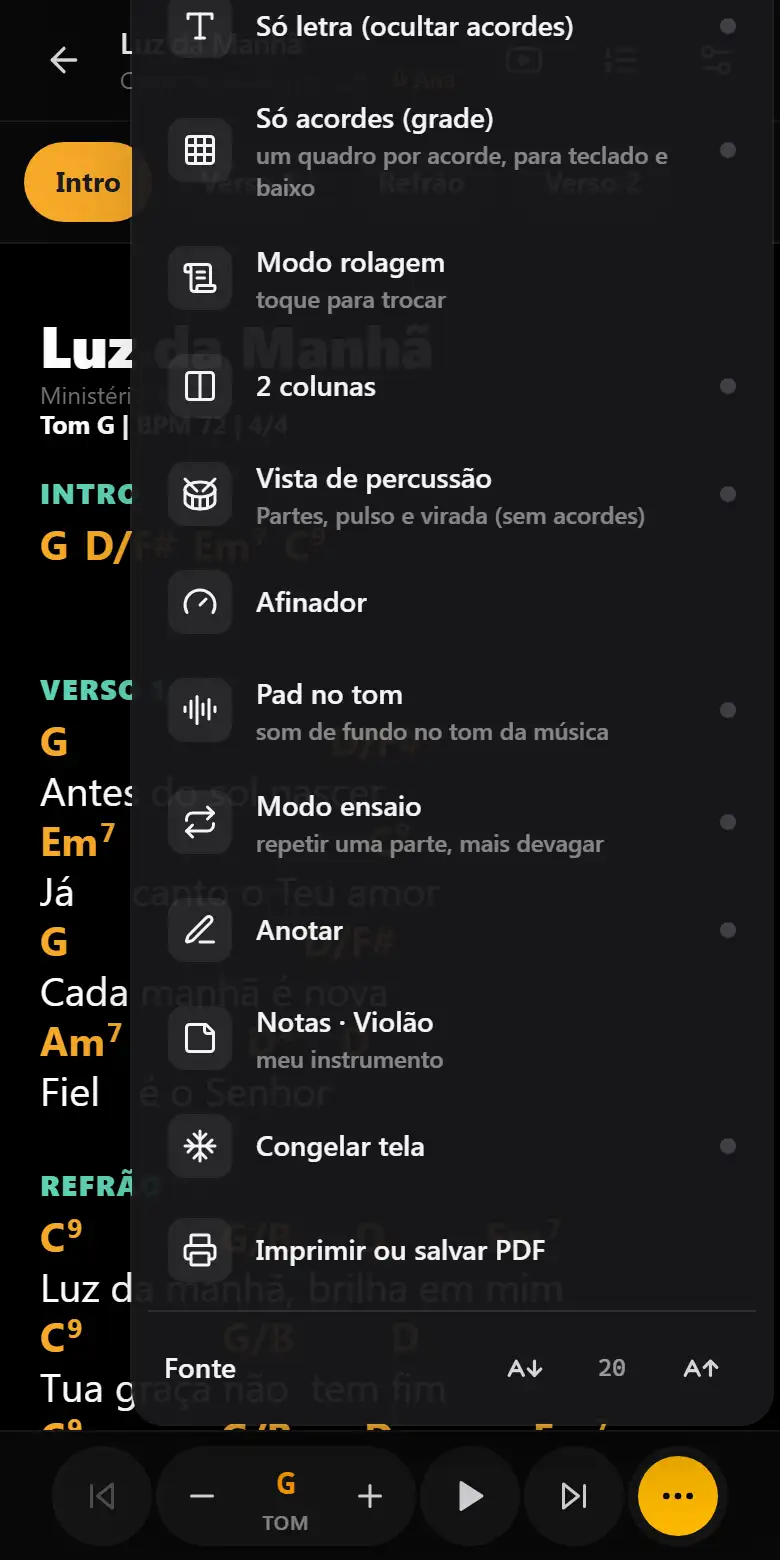
| Item | What it's for |
|---|---|
| Metronome | Beat lights at the top and click (sound). Needs the song's BPM. |
| Lyrics only | Hides the chords (for singers). |
| Scroll / page mode | Switches between scrolling and turning pages. |
| 2 columns | Great on a tablet in landscape. |
| Annotate | Write and draw on the chart. See Annotate. |
| Notes · instrument | Choose your instrument. See Notes. |
| Freeze screen | Ignores the Leader until turned off (to look at another section calmly). |
| Font | Smaller or larger text. |
| Chords only (grid) | The chart becomes boxes per section: | G | D | Em | C |, without lyrics (keys and bass). One box per chord. |
| Tuner | See Tuner. |
| Pad in key | See Pad in key. |
| Rehearsal mode | See Rehearsal mode. |
A small yellow dot on the ⋯ means something inside is turned on.
Chord diagrams
Tap any chord in the chart to see how to play it. Choose the instrument: Acoustic guitar, Bass (4 or 5 strings), Keys or Violin.
- Violin: 1st position with finger numbers, note names and the key's scale. With a capo, it shows concert pitch.
- The chosen instrument is saved on the device and also applies to notes by instrument.
- Other positions: on guitar and keyboard, the ‹ › arrows under the diagram change the position (guitar: open, barre and shapes higher up; keyboard: root position and inversions).
Settings panel
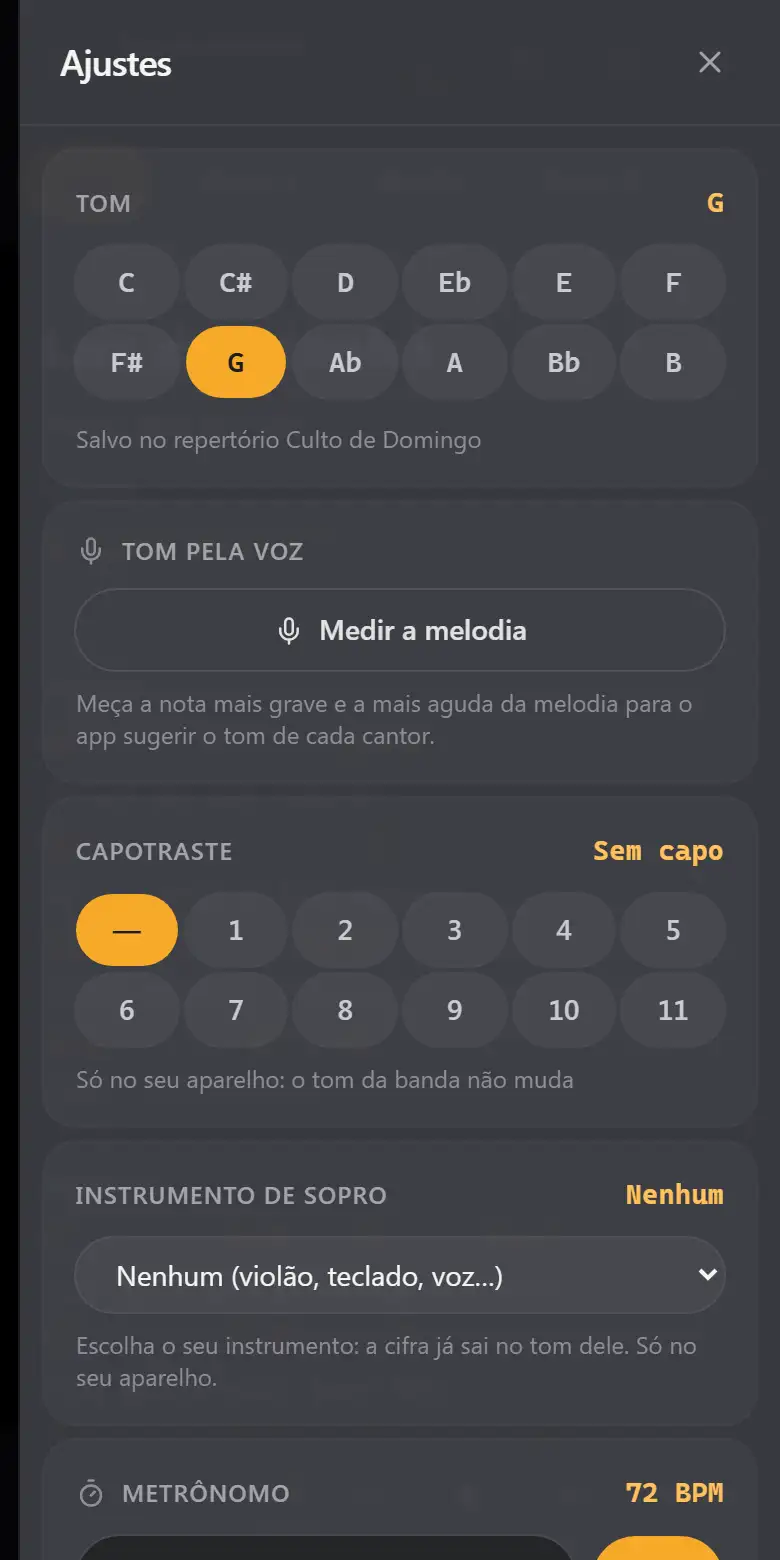
Options come in four groups: Song (key, key from your voice), My instrument (capo, wind instrument), While playing (metronome, service mode) and Reading (appearance, layout). Each section opens and closes with a tap and shows its current value.
- Key: transpose and save as the song's default key.
- Key by voice: melody range and key suggestion for the singer.
- Capo: the chart shows the shapes with a capo on the chosen fret.
- Metronome: click sound and “Turn on by itself for each song”.
- Service mode: what turns on when the service starts.
- Appearance: theme, font, regular chords or Nashville (1, 4, 5).
- Layout: show chords, page mode, 2 columns, auto-hide controls (turned off, the bars always stay visible; good for rehearsal), show annotations, freeze screen, speed.
- Capo suggestion: in a key that's hard on guitar (Eb, F#, Bb…), you'll see for example “Suggestion: capo 1, D shapes”; one tap sets the capo.
- Wind instrument: choose yours (Trumpet, Clarinet, Soprano, Tenor, Alto or Baritone sax, French horn, Flute, Trombone) and the app applies the tuning (B♭, E♭, F): the chart is shown in the instrument's key (a B♭ trumpet with the band in Bb reads in C). Only on your device; anyone scheduled as Trumpet or Sax opens in the right key.
- Simplified chords (in Layout and in Settings): G7M(9) becomes G, Am7(11) Am, D/F# D.
Service mode
Turned on with Start service on the setlist. Gets the device ready for the stage:
- Auto-scroll when each song opens (optional).
- Auto-advance: at the end of the song, counts 5 s and goes to the next one (optional).
- Screen always on and full screen.
- Hides the YouTube button so no one taps it by accident.
To leave, tap the SERVICE badge at the top.
Percussion view
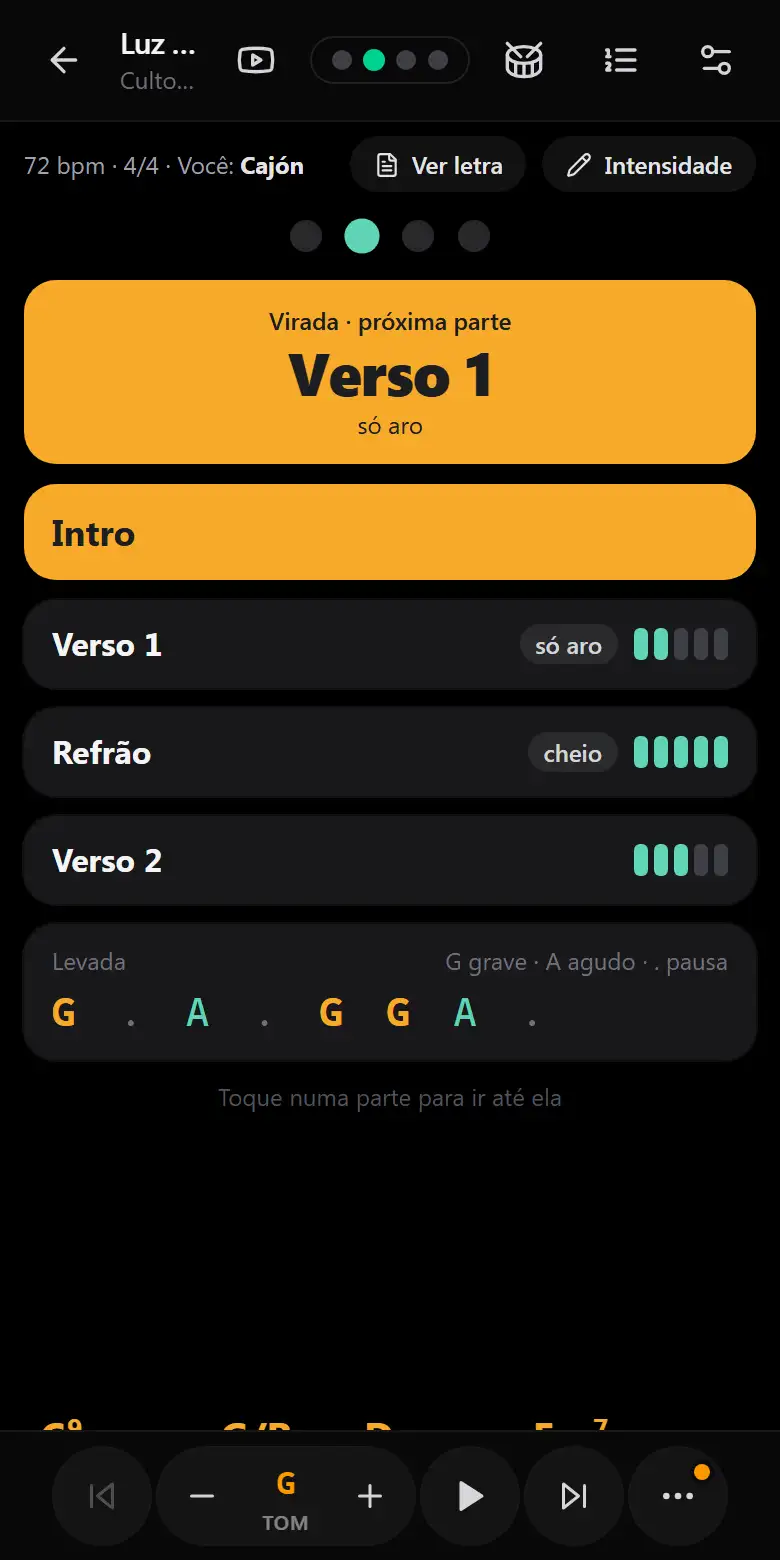
For cajón, percussion or drums: the song shows as blocks, without chords. It turns on by itself for whoever is in the lineup for those roles (with the name chosen in You on this device), or from the menu ⋯ → Percussion view. To go back to lyrics and chords, tap the drum 🥁 at the top of the song screen (or ⋯ → Percussion view).
- Sections as blocks: the current one in amber, past ones dimmed; tap a section to jump to it.
- Pulse: one dot per beat, blinking in tempo (no sound). The song needs a BPM.
- Fill warning: near the end of a section, “Chorus in 3” appears, counting in the song's tempo (with scrolling on). Without scrolling, only the next section's name shows.
- Intensity and groove: the musician taps Intensity and marks, on their own device, each section from 1 to 5 plus a word (soft, low only, full, stop, fill). Below, the song's groove:
G . A . G G A .(G low, A high, . rest). It's saved with the song and shared with it.
Live room: Leader and Follower
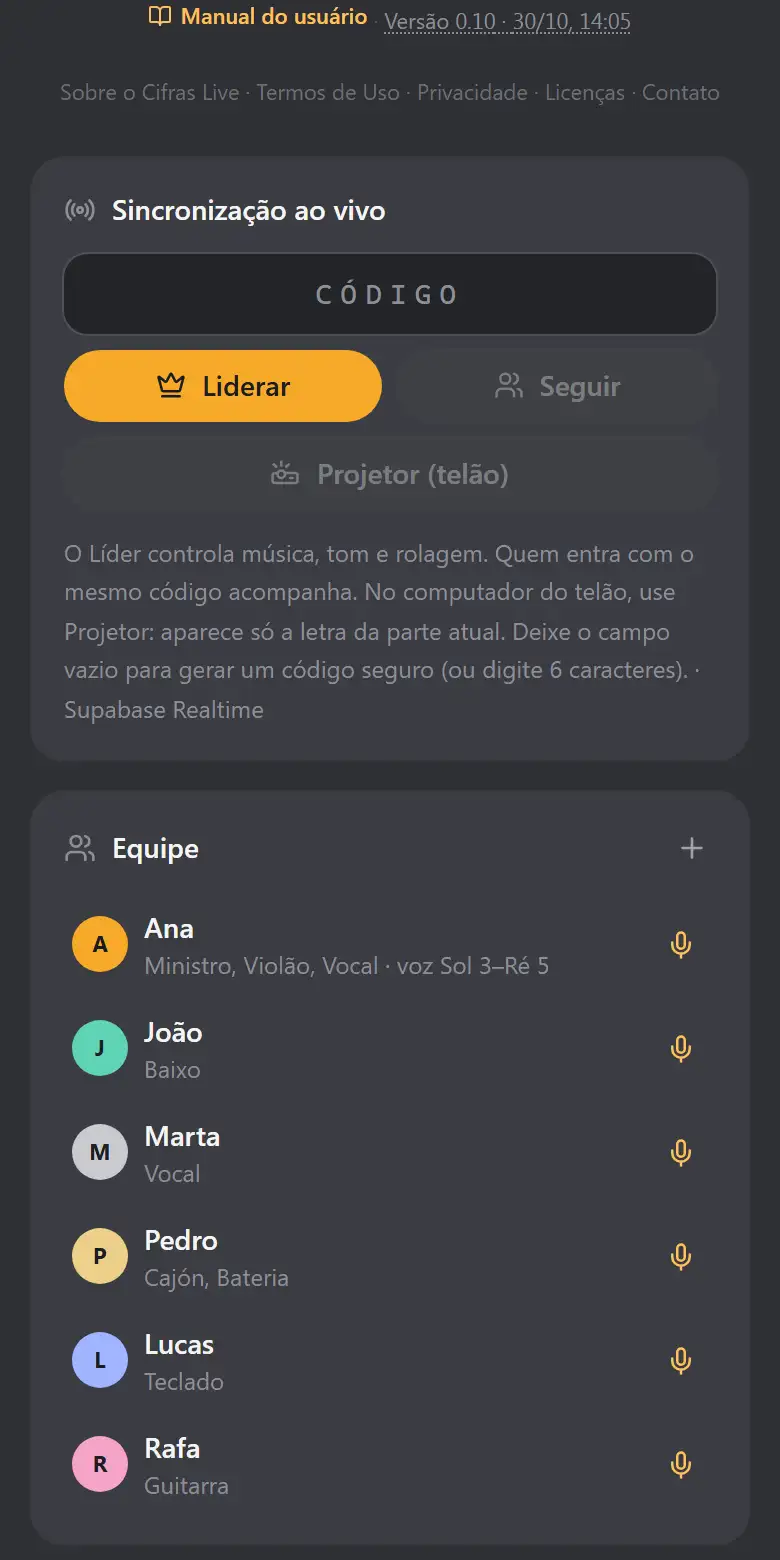
Who leads (Leader)
- Under Live sync, leave the code empty and tap Lead.
- A 6-character code appears in two blocks (e.g.
SAW BEJ). Tap Invite the band (QR code): whoever points the phone camera joins right away, without typing. The invite's Screen tab shows the projector's QR. You can also Copy link or Send it. - Open the setlist. Everything you do goes to the others: song, key, scrolling, section jumps.
Who follows (Follower)
- Point the camera at the Leader's QR code or open the link they sent (or type the code, with or without the space, and tap Follow).
- The screen follows the Leader on its own.
- Each musician keeps their own settings: font, lyrics only, theme, capo.
- Want to look at another section without being pulled along? Freeze screen in the ⋯ menu.
- The room is secure: random code, and only the real Leader can send commands (every message is signed).
- If the Leader leaves the room, “No leader connected · keeping the last song” appears at the top: the chart stays and you carry on until they're back. On the screen, only a discreet dot in the corner.
Leader cues
Quick messages that appear large on everyone's screen for 4 seconds (and vibrate on phones):
- The Leader taps 📣 (bottom bar; on a phone, top bar).
- Picks the cue. Their screen shows a confirmation.
Cues arrive even when the screen is frozen. They don't show on the Projector.
Projector (screen)
On the computer connected to the big screen, the app shows only the lyrics of the section the band is playing, large and centered, without scrolling.
- The Leader creates the room (see Live room).
- On the screen computer, type the same code and tap Projector (screen).
- Click the screen once to go full screen. Drag the window to the big screen (or mirror the display).
- Done: the song title shows for 3 s and then the lyrics change on their own at each section.
- The Leader sends the lyrics: the screen computer doesn't need the songs.
- Sections without lyrics (intro, solo) leave the screen dark.
- Charts without marked sections: lyrics advance 4 lines at a time, following the Leader's scrolling.
- To leave: Esc or the discreet Exit button in the corner.
| The screen shows | Meaning |
|---|---|
| Waiting for the Leader (check that the code matches) | Nothing is arriving: check the code and whether the Leader is in the room. |
| Connected to the Leader · waiting for a song | All good; the Leader just needs to open a song. |
Reference video
For rehearsing and practicing at home with the version the band will play.
- In the song's details (pencil ✏️), paste the YouTube link under Reference link and save.
- In the song, tap the YouTube icon at the top: a small floating window opens with the video over the chart.
- Drag the window by its top bar; ⤢ enlarges/shrinks; ↗ opens on YouTube; ✕ closes.
- No link: the button opens a YouTube search with the title and artist.
- Spotify link: opens Spotify, outside the app.
- In service mode the button doesn't show.
Notes by instrument
Messages attached to a section of the song, for one instrument or for everyone. E.g. Chorus → Drums: “cymbals only, no kick”.
Choose your instrument (once)
Menu ⋯ → Notes and choose: Acoustic guitar, Bass, Keys, Violin, Drums or Vocals. It's saved on the device.
Create a note
- Tap the note icon next to the section name (VERSE 1, CHORUS…).
- Choose who it's for: Everyone or an instrument.
- Write the message and tap Save note (or Enter).
What each person sees
- ■ Yellow: notes for Everyone.
- ■ Purple: notes for your instrument.
- Notes for other instruments are hidden. To see everything, check See notes for all instruments.
To delete, open the section and tap the trash can. Notes go along when you share the setlist.
Annotate the chart
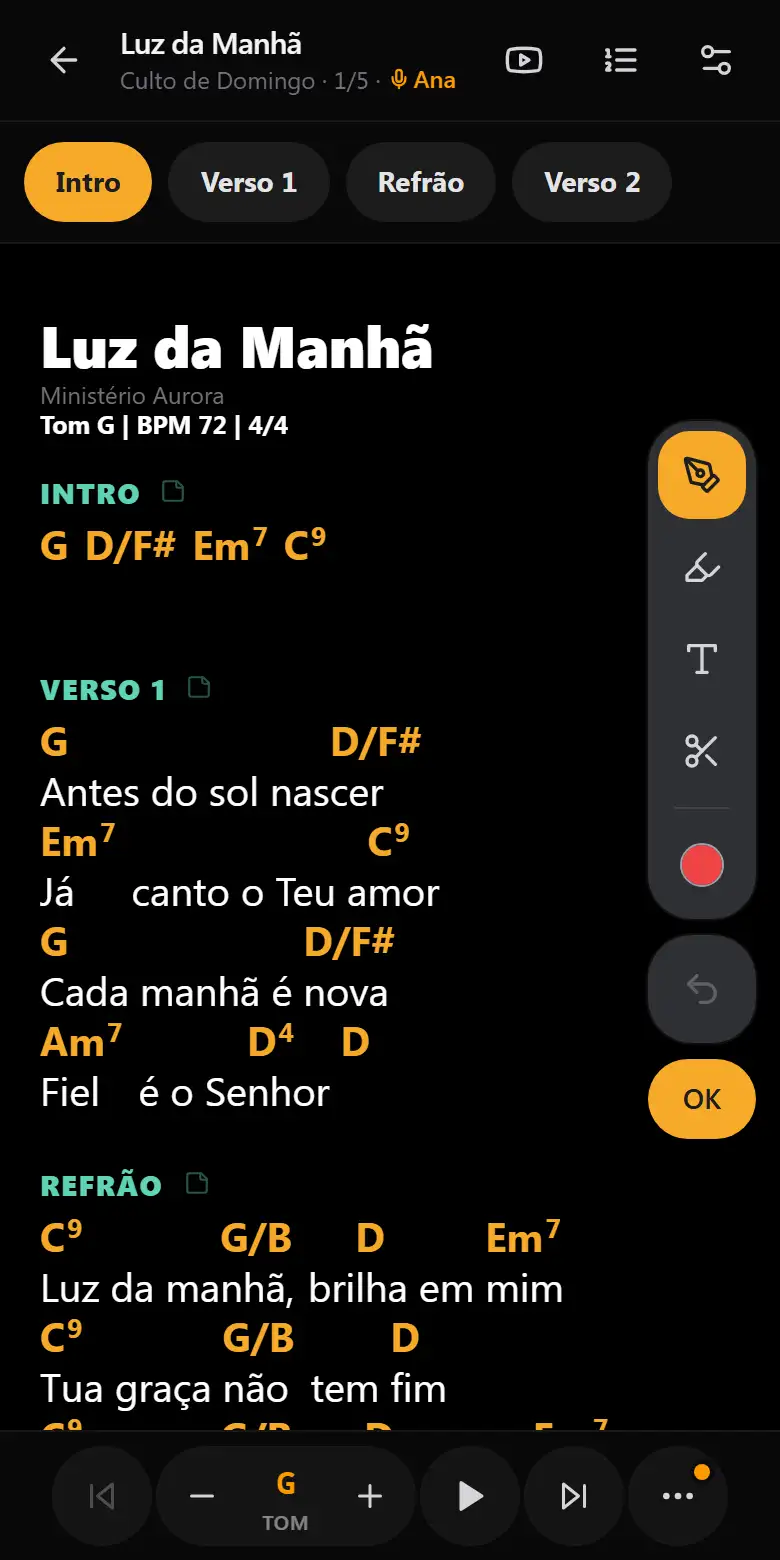
Menu ⋯ → Annotate: write and draw over the chart. Annotations are yours only, stay on the device and aren't sent to the band.
A toolbar appears on the right: pen, highlighter, text and crop (the selected one is amber), the color dot, Undo right below and OK to finish. With an annotation selected, the color dot becomes the trash can.
To hide them, turn off Show annotations in Settings.
Rehearsal mode
⋯ → Rehearsal mode. A bar appears at the bottom:
- Loop: tap a section (Verse, Chorus…). When the next section is reached, the chart jumps back to its start. Tap it again to stop looping.
- 100% · 75% · 50%: scrolling and metronome slower, together.
- The ✕ exits rehearsal mode. While rehearsing, the end bar and auto-advance are off.
Tuner
⋯ → Tuner, in any song (rehearsal or service). Choose Guitar, Bass or Violin and play a string: you'll see the note, the needle (green = in tune) and the nearest string.
- It uses the device microphone; works offline and nothing is recorded.
- It ignores room noise and anything that isn't a note (talking, clapping). Tune somewhere without much background sound.
Pad in key
⋯ → Pad in key: a continuous background sound in the song's key, generated on the device itself (no internet, no files).
- Play the pad turns it on and off. Choose the sound (Strings, Atmosphere or Soft organ) and the volume.
- It follows each song's key with a smooth transition. In a live room, it follows the Leader's key.
- While it plays, a button with the key appears in the bottom bar. It turns off by itself when you go back to the home screen.
Updates
When there's a new version, this appears at the bottom: “New version available · Later · Update”.
- Update: reloads right away in the new version.
- Later: updates the next time the app opens. Handy in the middle of a service.
- The app never updates on its own while you're using it.
The version number is at the bottom of the home screen (for example Version 0.2 · 27/10). The number only changes when a new feature arrives; fixes come in the same version, and the date shows whether your device is up to date. Tapping the number opens the What's new page.
Common problems
A new feature doesn't show up
The device has the older version. Tap Update when the notice appears, or close the app and open it again. On a computer, Ctrl + Shift + R.
The Follower doesn't follow
- Check that the code is the same and there's internet.
- Make sure the screen isn't frozen (⋯ → Freeze screen).
- The song must be saved on the device (share the setlist).
The big screen stays on “Waiting”
See the table under Projector.
The page reloaded in the middle of a song
The app returns on its own to the same song, setlist, key, service mode and live room. Scrolling goes back to the start of the song.
The screen turns off mid-song
Use Start service with “Keep screen on” turned on in Settings.
The metronome makes no sound
The browser blocks sound until the first tap. Tap the red “Tap to turn on sound” notice. The song needs a BPM.
I got a new phone
Songs live on each device. On the old one, use ⚙ → Backup → Export and send yourself the file; on the new one, ⚙ → Backup → Import. You can also share setlists by link.
“Out of space” appeared
The device ran out of space and the latest changes weren't saved. Export the backup right away and free up space (photos, videos, apps).
“You” doesn't show in the lineup
Choose your name in ⚙ → You on this device.
Keyboard shortcuts
| Key | Action |
|---|---|
| ← → | Previous / next page (page mode; also Bluetooth pedal) |
| Esc | Closes windows; leaves the Projector |
| Ctrl+Shift+R | Force-reloads the app (computer) |